
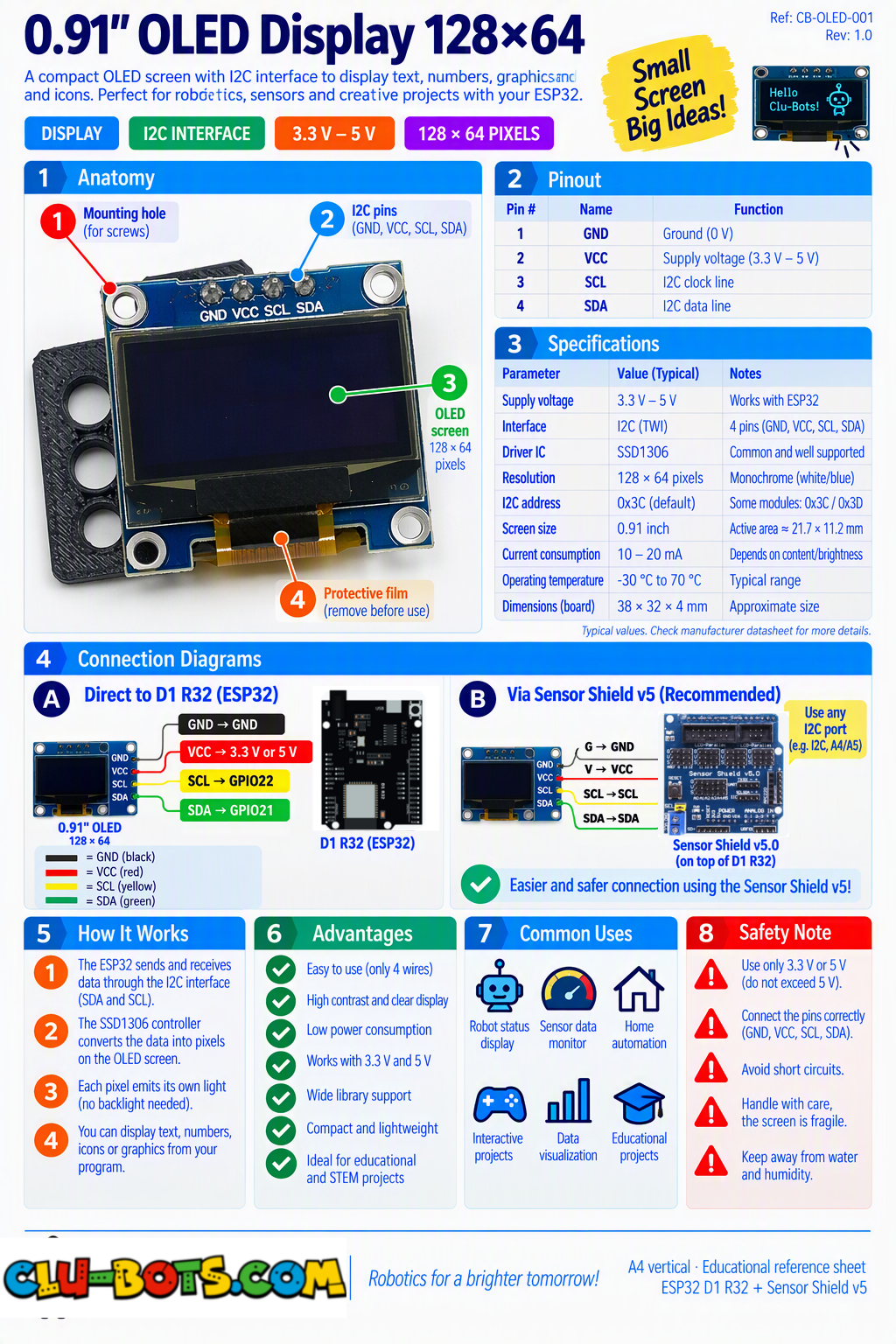
0.91 inch OLED Display 128X64
🎮 Show Text
Goal
Display simple text on the OLED screen.
Concepts
I2C · OLED Display · Text Output · Pixels
import machine  # Controls the board hardware
import ssd1306  # Controls the OLED display

# Sets up the I2C connection for the OLED
# GPIO25 corresponds to 3 on the Sensor Shield V5.0
# GPIO26 corresponds to 2 on the Sensor Shield V5.0
# Sets up the OLED as a 128 x 32 pixel display
i2c_extend = machine.SoftI2C(scl = machine.Pin(26), sda = machine.Pin(25), freq = 100000)
oled = oled128x64.OLED(i2c_extend,address=0x3c,font_address=0x3A0000)

oled.fill(0)  # Clears the screen

oled.text('Hello!', 0, 10)  # Places Hello on the screen

oled.text('Clu-Block', 0, 30)  # Places Clu-Block below it

oled.show()  # Displays everything on the screen
🎮 Position Information
Goal
Display information in different areas of the OLED screen.
Concepts
I2C · OLED Display · Coordinates · X/Y Position · Text Output
import machine  # Controls the board hardware
import ssd1306  # Controls the OLED display

# Sets up the I2C connection for the OLED
# GPIO25 corresponds to 3 on the Sensor Shield V5.0
# GPIO26 corresponds to 2 on the Sensor Shield V5.0
# Sets up the OLED as a 128 x 32 pixel display
i2c_extend = machine.SoftI2C(scl = machine.Pin(26), sda = machine.Pin(25), freq = 100000)
oled = oled128x64.OLED(i2c_extend,address=0x3c,font_address=0x3A0000)

oled.fill(0)  # Clears the screen

oled.text('TOP', 0, 0)  # Places text at the top left

oled.text('RIGHT', 80, 15)  # Places text near the right side

oled.text('CENTER', 35, 30)  # Places text near the center

oled.text('BOTTOM', 0, 54)  # Places text near the bottom

oled.show()  # Displays everything on the screen
🎮 Growing and Shrinking Rectangle
Goal
Create a rectangle that grows and shrinks according to a changing value.
Concepts
I2C · OLED Graphics · Variables · Loops · Animation
import machine  # Controls the board hardware
import ssd1306  # Controls the OLED display
import time     # Controls pauses and timing

# Sets up the I2C connection for the OLED
# GPIO25 corresponds to 3 on the Sensor Shield V5.0
# GPIO26 corresponds to 2 on the Sensor Shield V5.0
# Sets up the OLED as a 128 x 32 pixel display
i2c_extend = machine.SoftI2C(scl = machine.Pin(26), sda = machine.Pin(25), freq = 100000)
oled = oled128x64.OLED(i2c_extend,address=0x3c,font_address=0x3A0000)

while True:  # Repeats forever

    for size in range(10, 101, 10):  # Increases the rectangle size

        oled.fill(0)  # Clears the previous rectangle

        oled.text('Growing', 0, 0)  # Shows the current action

        oled.rect(10, 25, size, 25, 1)  # Draws the rectangle

        oled.show()  # Updates the screen

        time.sleep(0.2)  # Waits before growing again

    for size in range(100, 9, -10):  # Decreases the rectangle size

        oled.fill(0)  # Clears the previous rectangle

        oled.text('Shrinking', 0, 0)  # Shows the current action

        oled.rect(10, 25, size, 25, 1)  # Draws the rectangle

        oled.show()  # Updates the screen

        time.sleep(0.2)  # Waits before shrinking again
🎮 Combine Text, Values and Graphics
Goal
Create one screen containing a title, numerical value, status message, and simple graphical indicator.
Concepts
I2C · OLED Display · Text · Variables · Graphics · Screen Layout
import machine  # Controls the board hardware
import ssd1306  # Controls the OLED display

# Sets up the I2C connection for the OLED
# GPIO25 corresponds to 3 on the Sensor Shield V5.0
# GPIO26 corresponds to 2 on the Sensor Shield V5.0
# Sets up the OLED as a 128 x 32 pixel display
i2c_extend = machine.SoftI2C(scl = machine.Pin(26), sda = machine.Pin(25), freq = 100000)
oled = oled128x64.OLED(i2c_extend,address=0x3c,font_address=0x3A0000)

value = 70  # Stores the example value

oled.fill(0)  # Clears the screen

oled.text('Clu-Block', 0, 0)  # Shows the title

oled.text('Value: ' + str(value), 0, 18)  # Shows the value

oled.text('Status: OK', 0, 32)  # Shows the status

oled.rect(0, 50, 110, 10, 1)  # Draws the indicator outline

oled.fill_rect(2, 52, value, 6, 1)  # Draws the value indicator

oled.show()  # Displays the complete screen

print('Value:', value)  # Sends the value to the PC

print('Status: OK')  # Sends the status to the PC
🎮 Create a Mini Dashboard
Goal
Create a mini dashboard that displays changing numerical values, a status category, and a graphical indicator while sending the same values to the PC.
Concepts
I2C · OLED Dashboard · Variables · Graphics · Classification · Loop · Serial Output
import machine  # Controls the board hardware
import ssd1306  # Controls the OLED display
import time     # Controls pauses and timing

# Sets up the I2C connection for the OLED
# GPIO25 corresponds to 3 on the Sensor Shield V5.0
# GPIO26 corresponds to 2 on the Sensor Shield V5.0
# Sets up the OLED as a 128 x 32 pixel display
i2c_extend = machine.SoftI2C(scl = machine.Pin(26), sda = machine.Pin(25), freq = 100000)
oled = oled128x64.OLED(i2c_extend,address=0x3c,font_address=0x3A0000)

while True:  # Repeats forever

    for value in range(0, 101, 10):  # Changes the value from 0 to 100

        if value < 30:  # Checks the lower range
            status = 'LOW'  # Saves the low status

        elif value < 70:  # Checks the middle range
            status = 'MEDIUM'  # Saves the medium status

        else:  # Runs for the upper range
            status = 'HIGH'  # Saves the high status

        oled.fill(0)  # Clears the previous screen

        oled.text('MINI DASHBOARD', 0, 0)  # Shows the dashboard title

        oled.text('Value: ' + str(value), 0, 16)  # Shows the value

        oled.text('Status: ' + status, 0, 30)  # Shows the status

        oled.rect(0, 50, 110, 10, 1)  # Draws the indicator outline

        oled.fill_rect(2, 52, value, 6, 1)  # Draws the changing indicator

        oled.show()  # Updates the OLED screen

        print('Value:', value)  # Sends the value to the PC

        print('Status:', status)  # Sends the status to the PC

        print('---')  # Separates each Serial report

        time.sleep(0.5)  # Waits before changing the value