
The blocks. Structure and actions
The Blocks are the basic units that Clu-Bots Pro uses to carry out the “algorithm” of each application. They are assembled and placed in a “sequential” way, understanding that their execution will always be from top to bottom.
The blocks can have different parts. We see a generic one.

Help appears if we leave the mouse pointer on the block for a few seconds.
The name identifies the function of the block.
The parameters are the values that are associated with the function of the block. Normally for the selection of the parameter we do it by clicking on the area and a selection menu will appear with which to modify it, but it is also possible to embed values on the area for both parameters (integer, boolean or text values).
Block context menu
A series of operations can be performed on each Block. To do this, we press the right button of the mouse while the pointer is over the block and a menu appears with the options that can be seen in the following image. We will comment on them.

Duplicate : Allows you to duplicate the block,
with the same parameters that you already have defined.

Add Comment:
This allows you to add a text comment next to the block. When you right-click anywhere in the block programming area, a small “Add Comment” menu appears. Clicking on it opens a text box where you can type. The comment area can be moved and positioned wherever you want.
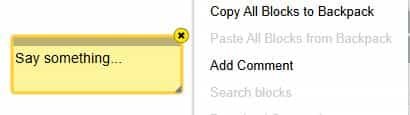
Block Menu
Selecting a block and right-clicking opens a menu with different actions you can perform with that block:
- External Inputs/Inline: Allows you to place parameters in two different ways, without affecting the block’s functionality.
- Collapse/Expand Block: Allows you to collapse the block’s image to take up less space, and if it collapses, it can be expanded again.
- Disable/Activate Block: Allows you to disable the block for programming purposes, leaving it simply as an image on the screen, and then reactivate its functionality.
- Delete Block: Allows you to delete the block along with any blocks that have been added to it. Specify the number of blocks associated with the block you want to delete.

Configuration of a Block at the functional level
Certain blocks have the possibility of being configured, these blocks include a small icon on the left side that, when clicking on it, a window appears from which we can select elements and drag them to the block to include them in the .
In the figure we see the configuration of the conditional block “If”. It can be seen how the auxiliary blocks “”On the other hand if ” and “otherwise” have been included, which extend the scope and functionality of this “if” block.
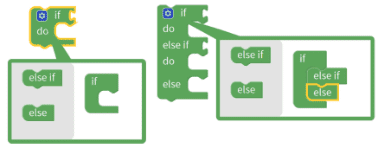
In addition to this “If” block, there are other blocks that have this capability. They are shown in the figure below.

Embedding parameters and variables within a block.
Certain function blocks need to be configured with parameters that identify pins, value status, variables, etc… For the configuration, elements that fit into the . Depending on the profile of the block fitting, this will be the type of variable.
Working with Variables.
Working with variables is very important in Clu-BlocksPro.
The operations with variables are located in the library tab ” Variables ” in it we will find the function blocks that allow us to create and assign values to the variables. These operations are performed with the blocks:

Variables can be of different types as shown in the block dropdown menu: Int (integer number), float (decimal number), boolean (TRUE or FALSE) and string (string of characters), etc.
Once we define the variable, at the same time that we give it a value, it will be available to be able to assign it a new value or collect the value that it has been assigned . In the following images we see these operations.


